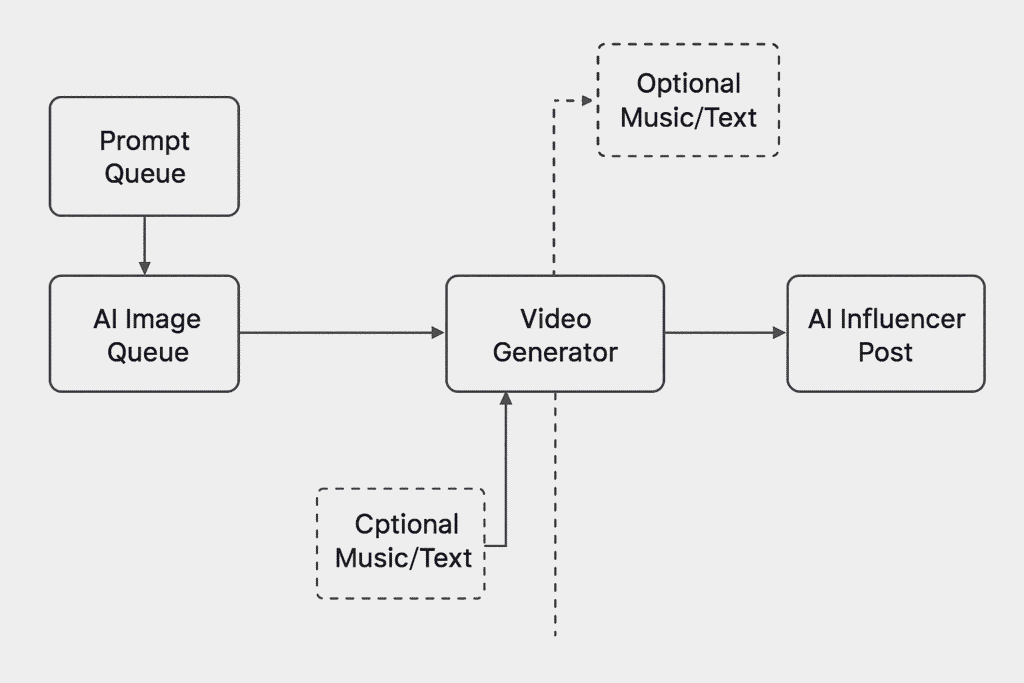
This guide continues from where we left off — showing you how to generate realistic videos for your AI influencer by copying the motion and camera style from real influencer videos.
Using SocialAppFarm, your AI influencer can mimic real-world movement, posture, and style automatically.
⚠️ Important
AI generation results may vary. While SocialAppFarm’s AI tools are designed to create high-quality content, outputs are not always perfect. You may need to generate multiple times or adjust prompts and settings to achieve the best results. Quality improves with better input images, detailed prompts, and consistent experimentation.
Generating normal realistic Videos for your influencer
Step 1: Create Content Queues
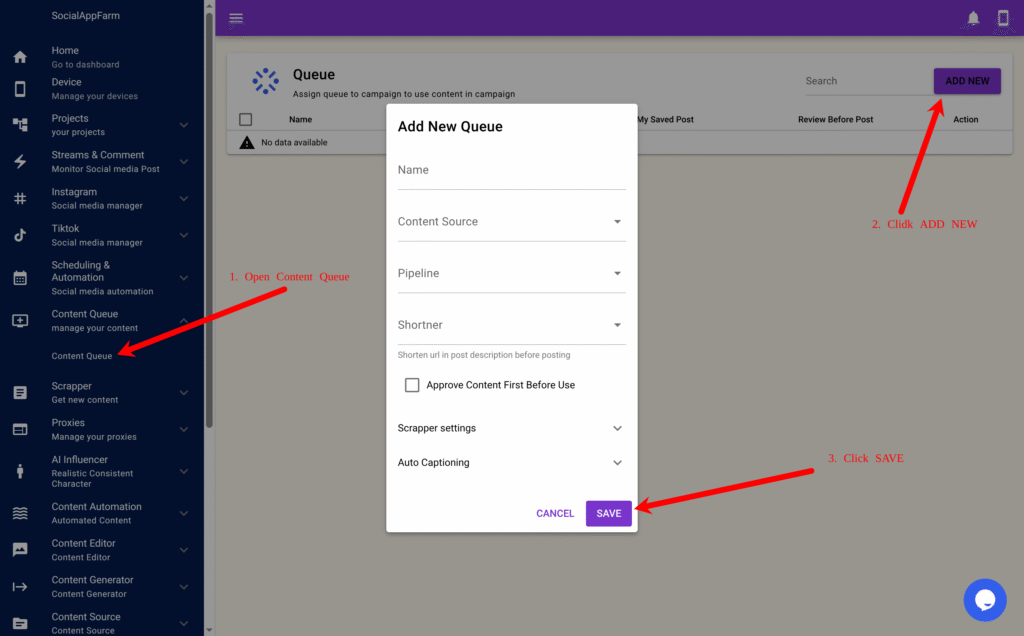
We’ll need two content queues — one for the AI influencer videos and one for the reference videos we want to copy movement from.
- Go to Content Queue → Content Queue.
- Click Add New, name it:
My Influencer Video QueueThen click Save. - Click Add New again, name the second queue:
Copy Movement VideosUpload the reference videos whose style or motion you want your AI influencer to imitate.
These videos will act as motion templates for your AI influencer’s generated clips.
Step 2: Create Faceless Content Automation
- Go to Content Generator → Faceless Content.
- Click the New button to create a new automation form.
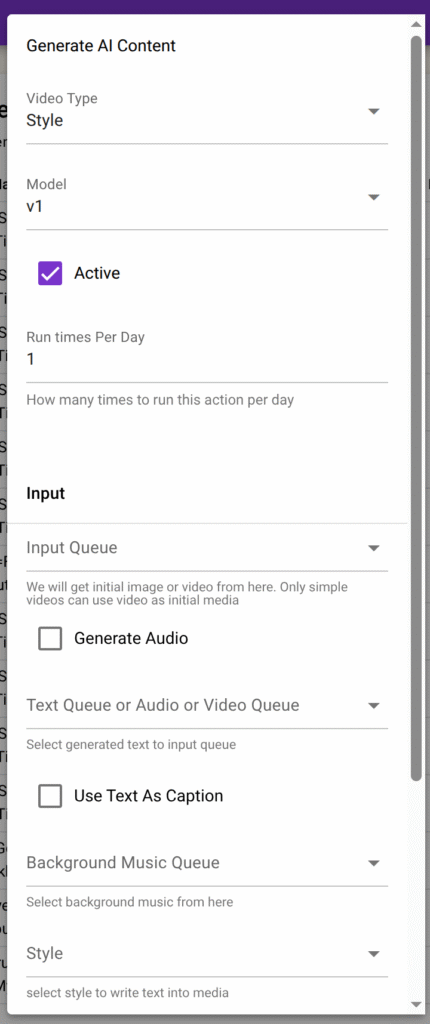
- Fill in the fields as follows:
| Field | Description |
|---|---|
| Run Times | Number of times per day you want videos generated (e.g., 2–4 times daily). |
| Video Type | Select Style. |
| Resolution | Choose 480p or 720p (720p offers higher quality but uses more credits). |
| Input Queue | Select the queue where your AI-generated images are stored. These images will be used to build the videos. |
| Text / Media Queue | Select Copy Movement Videos — this provides the video style and motion. |
| Background Music Queue | Choose a queue that contains your background music files. |
| Text Style | Select the text style you created earlier (e.g., My First Text Style). |
| Output Queue | Select My Influencer Video Queue — where finished videos will be saved. |
Caption Notes
If the image in your input queue has a caption, it will automatically be transferred to the generated video.
If a caption includes a colon (:), SocialAppFarm will treat it as:
- Text before the colon → shown as an overlay on the video.
- Text after the colon → used as the post caption on social media.
Example:
At the beach: A relaxing moment by the sea
- “At the beach” → displayed as video text.
- “A relaxing moment by the sea” → used as your post caption.
Step 3: Save and Start Generating
Once all fields are filled:
- Click Save to activate the automation.
- SocialAppFarm will now automatically:
- Take new images from your Input Queue
- Apply movement and style from your Copy Movement Videos
- Add background music and text overlays (if configured)
- Save the finished video to your Output Queue
IMPORTANT
- Always use a clear input photo and reference video where the character’s face is visible from the very first frame.
- Avoid cluttered inputs. If there are multiple faces, blur the non-priority ones or keep them in the background. The main character must be in the foreground.
- If your reference video is a close-up, your input photo should also be framed as a close-up.
- If the reference is a medium or full-body shot, match that style with the input.
Step 4: Auto-Post Your Generated Videos
You can now connect your video output queue directly to your campaign:
- Go to your TikTok or Instagram campaign settings.
- Set the Content Queue to your output queue (e.g., My Influencer Video Queue).
- SocialAppFarm will automatically post the newly generated videos based on your campaign schedule.
- Just keep uploading fresh images or generate it using your AI Influencer to your input queue Socialappfarm will keep generating new videos and post to your account
✅ Summary
| Step | Action | Result |
|---|---|---|
| 1 | Create input & reference queues | Store AI images and motion source videos |
| 2 | Configure faceless content automation | Combine images + movement + text |
| 3 | Save automation | Auto-generate realistic AI influencer videos |
| 4 | Link output queue to campaign | Automatically post to social media |
Your AI influencer can now continuously create and post dynamic, realistic videos that replicate the style and rhythm of real influencers — entirely automated through SocialAppFarm.