SocialAppFarm includes a powerful feature that lets you track and monitor new posts — or new user uploads — on TikTok and Instagram that contain your brand name or specific keywords, and then automatically comment on those posts.
You can view all tracked posts directly from your dashboard, review them, and decide whether to comment manually or let AI generate comments automatically.
Step 1: Create a Stream Campaign
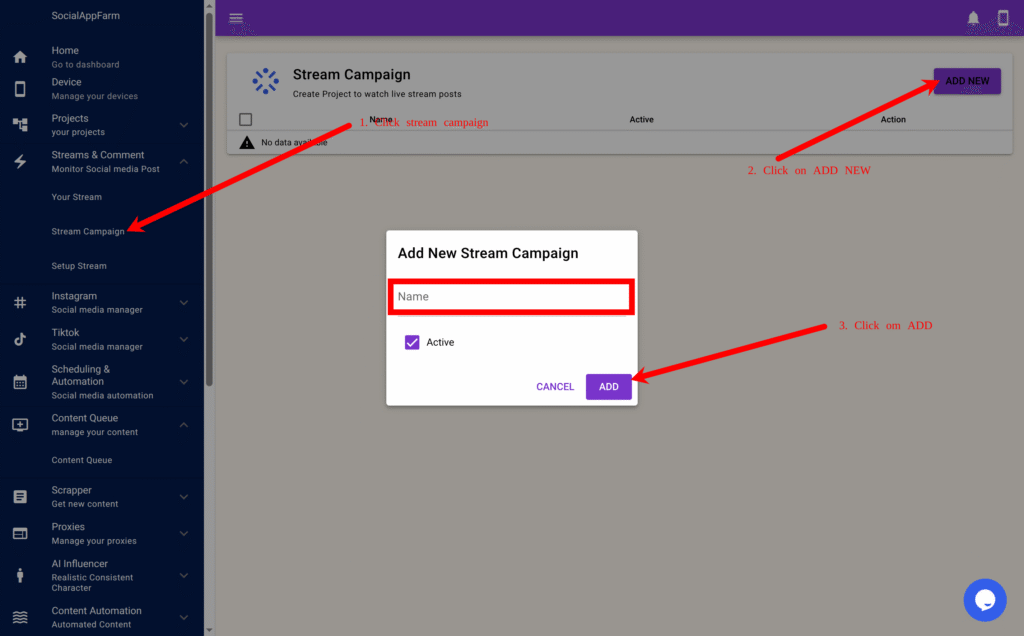
- On the main menu, go to Streams & Comments → Stream Campaign.
- Click Add New to create a new campaign.
- Enter a campaign name — for example:
Watch My Brand - Click Save,
Step 2: Set Up a Stream
- Click View Stream Setup to begin configuring the keyword streams for this campaign.
- Click Add New to create a new stream setup

In the pop-up form:
- Choose the social media platform you want to monitor (TikTok or Instagram).
Instagram Stream Types
- Search Top Posts — Finds high-engagement posts containing your keywords.
- Search Recent Posts — Finds the latest posts matching your keywords.
- Get User Latest Posts — Tracks posts from specific usernames.
TikTok Stream Types
- Search Top Videos (24 hrs) — Finds trending videos with your keywords.
- View Your FYP — Monitors your “For You” Page for relevant videos.
- Get User Latest Posts — Tracks recent uploads from specific users.
In the Keywords field, enter a list of words or phrases you want to monitor, separated by commas.
Example:
shopify, dropshipping, ecommerce, viral product
If your streams involve getting a user post enter list of usernames, to watch their post seprated by , in the usernames field.
In the Automation Campaign field, select the campaign you want to use for posting comments.
⚠️ Make sure “Stream Comment” is scheduled on that campaign’s automation tab so comments are posted regularly.
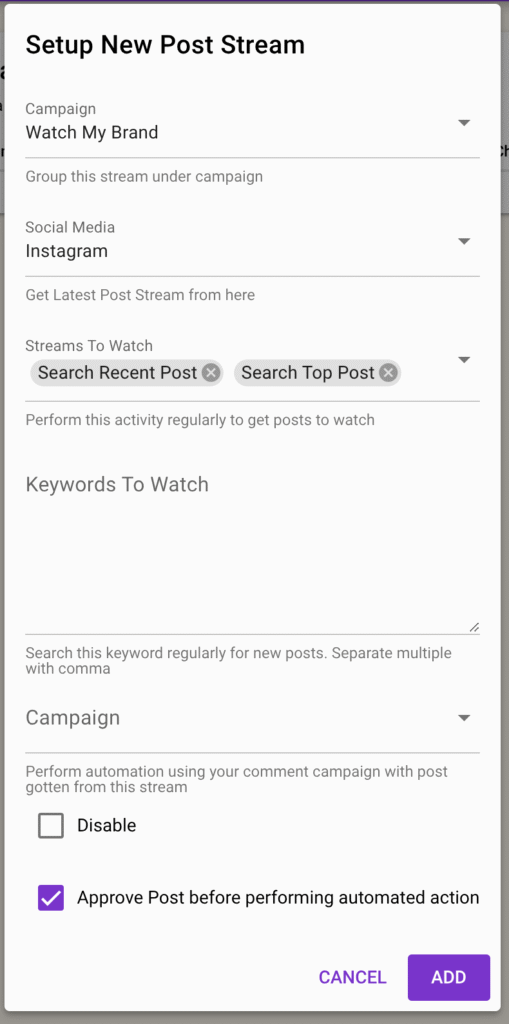
- In the Automation Campaign field, select the automation campaign you want to use for posting comments. ⚠️ Make sure “Stream Comment” is scheduled on that campaign’s automation tab so comments are posted regularly.
Step 3: Additional Options
- Approve Post Before Automated Action → ✅ Tick this to manually review posts before the system comments.
- Disable → Temporarily stop fetching new posts for this specific stream.
- You can create multiple streams per platform (e.g., one for “Search Top Videos” and another for “User Latest Posts”). Note: Do not mix stream types that use different data inputs (for example, Search Recent Posts requires keywords, while Get User Latest Posts requires usernames).
Click Add to save your stream setup.
You can repeat these steps to create multiple keyword streams per campaign.
Step 5: Schedule Comment Stream On Your Campaign
You need to set up a schedule for automatically commenting on stream posts from your automation campaign.
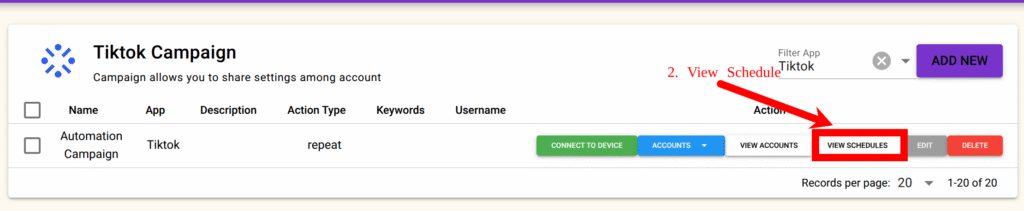
- From the main menu, go to TikTok → Campaign or Instagram → Campaign.
- Select your automation campaign and click View Schedule.
- Schedule the Stream Post Comment interaction activity for the days you want comments to be posted
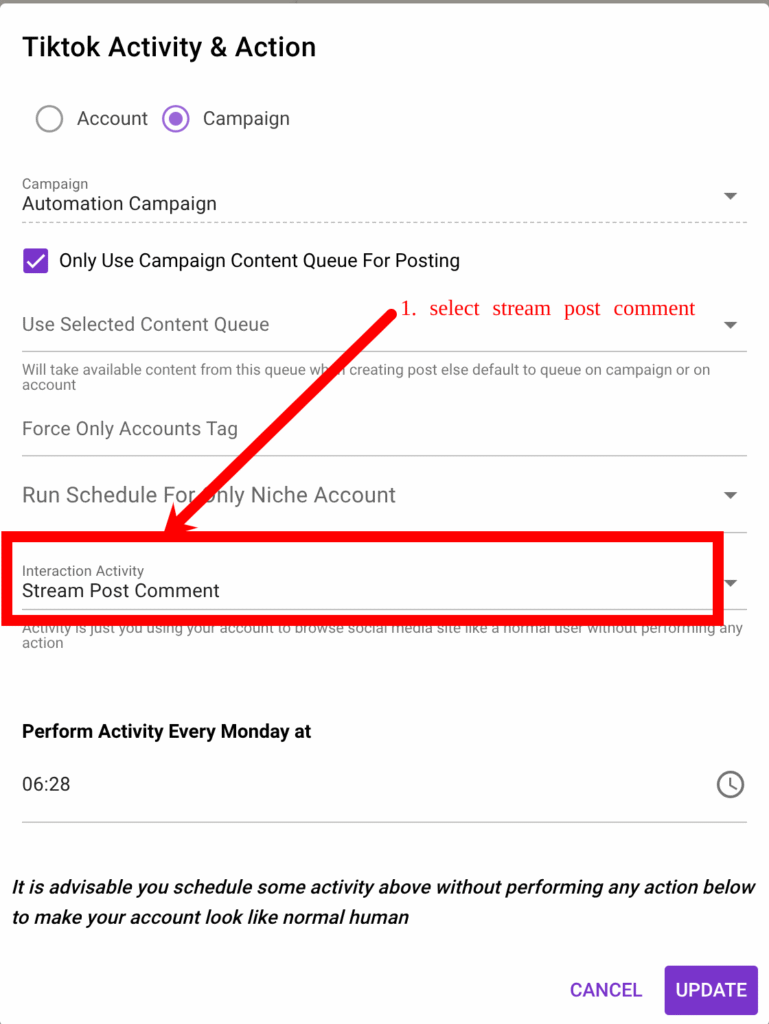
ocialAppFarm will automatically comment on all approved stream posts from your dashboard.
You can also:
- Add manual comments yourself, or
- Allow AI to automatically generate comments based on your campaign’s comment prompt.
See the next section on how to approve live posts for commenting.
Step 5: Monitor and Manage Your Streams
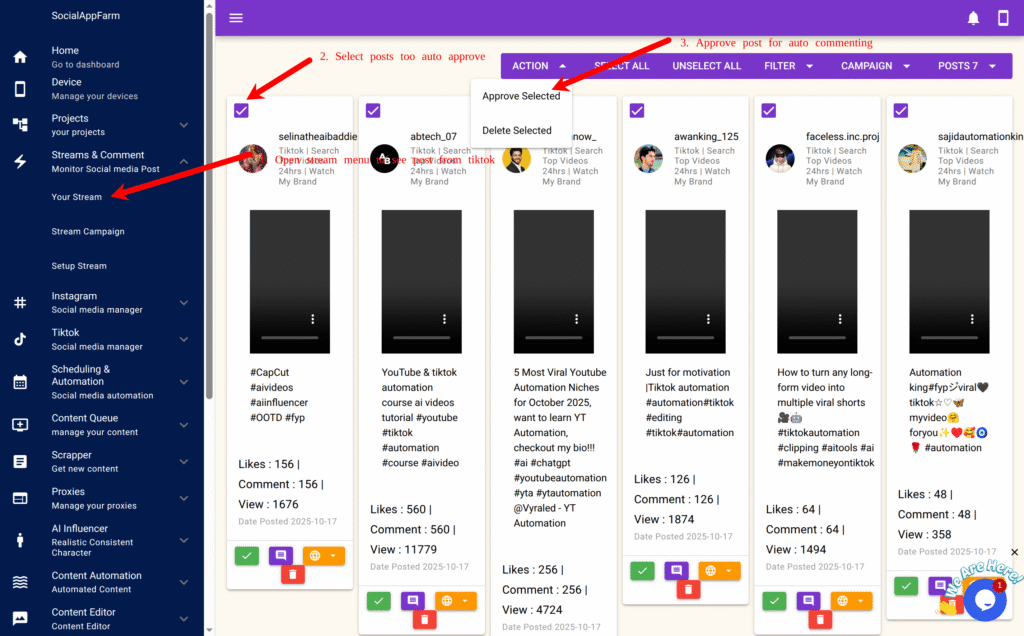
You can now go daily to Your Stream from the main menu.
to:
- View all new posts from TikTok and Instagram that match your keyword streams.
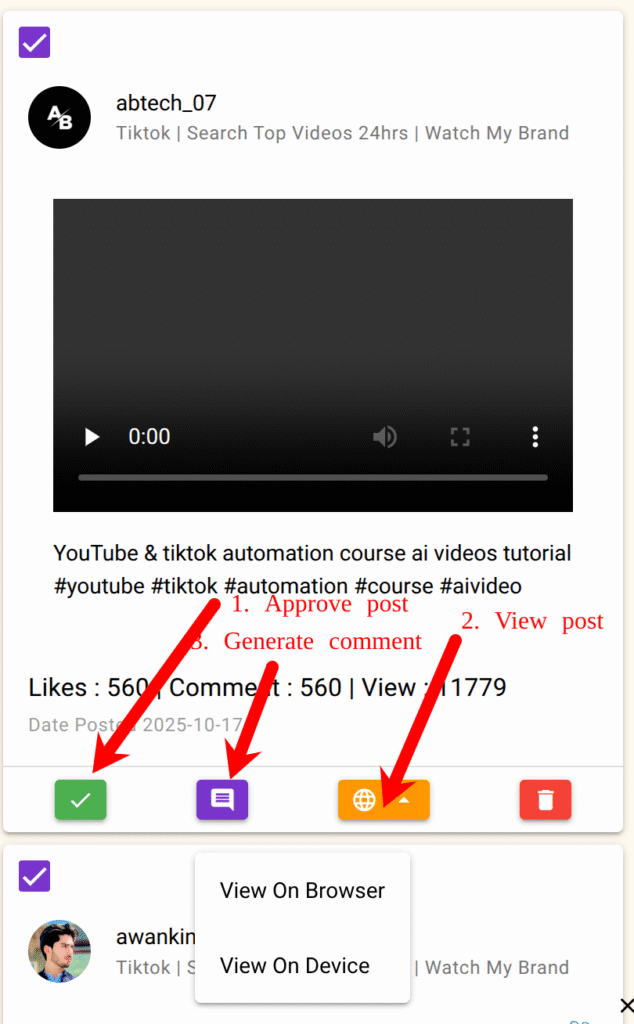
- Open posts directly in your browser or device for quick engagement.
- Filter or hide posts that don’t match your brand or niche.
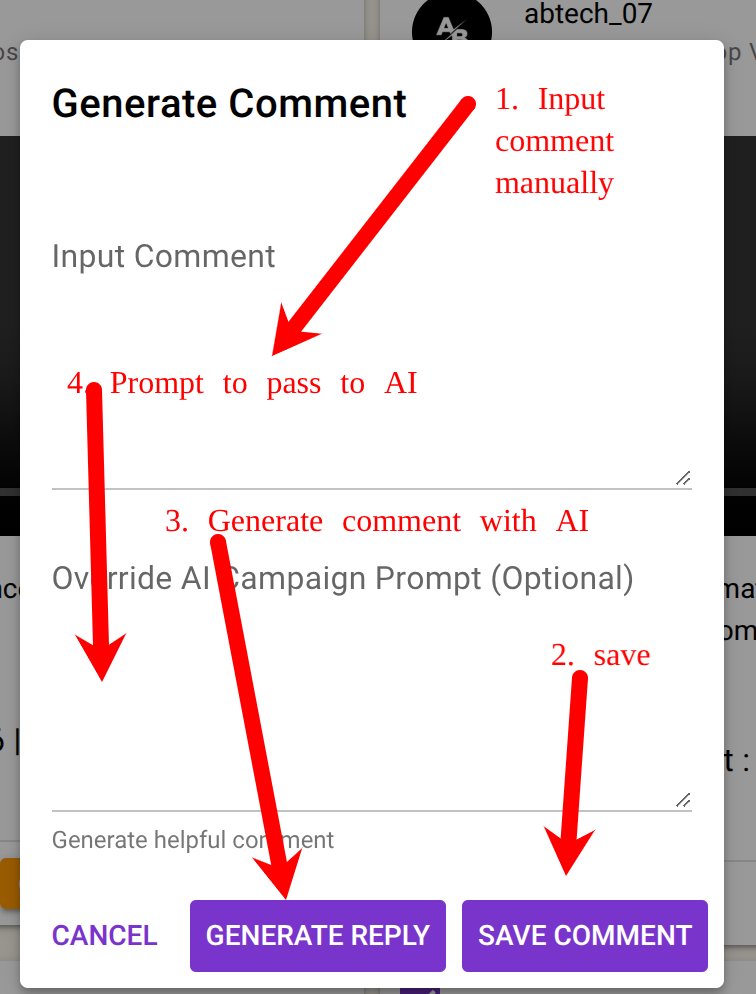
- Use the AI Comment Generator to create relevant comments automatically.
- Manually input your own comment if you prefer.
- Approve posts to allow automatic commenting by your selected automation campaign even if you dont input comment.
✅ Result
You can now:
- Monitor your brand visibility across TikTok and Instagram.
- Engage automatically with posts that mention your keywords.
- Respond instantly using AI-powered or manual comments.
- Manage all this activity directly from your SocialAppFarm dashboard.
Example Use Cases
- Monitor and comment on posts mentioning your brand (e.g., “MyStore,” “Shopify store,” etc.).
- Automatically reply to trending videos in your niche with witty or helpful AI comments.
- Build awareness by consistently engaging with audience conversations — all on autopilot.
Leave a Reply