You can now create realistic talking videos for your AI influencer’s images using SocialAppFarm’s Faceless Content Generator.
This feature allows your influencer to speak from text or audio, creating dynamic and engaging videos for platforms like TikTok and Instagram.
If you haven’t yet created your AI influencer images, first check the previous article on Generating AI Influencer Images.
For this workflow, we recommend generating images in talking or podcast-style poses — e.g., prompts like:
“A podcaster sitting in front of a microphone, medium shot.”
This ensures your AI influencer looks natural when converted into talking videos.
Step 1: Create Content Queues
We’ll set up three queues for this workflow.
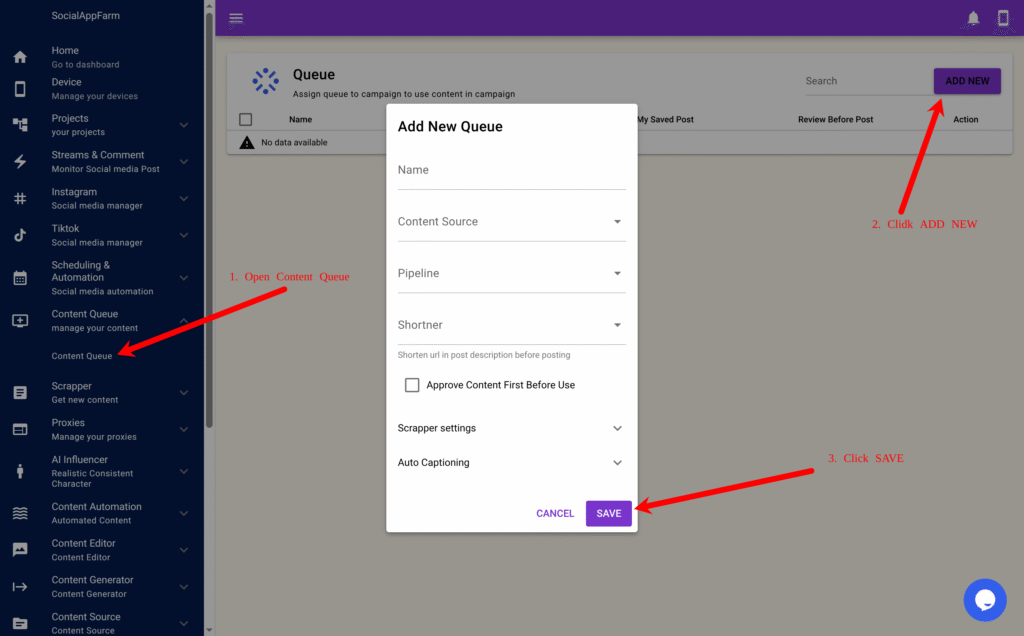
- Talking Video Queue
- Go to Content Queue → Content Queue.
- Click Add New.
- Name it:
My Talking Video Queue - Click Save.
- Audio Speech Queue
- Click Add New again.
- Name it:
My Audio Speech - Click Save.
- (Optional)Background Music Queue
- Create another queue called:
Background Music - Upload background tracks (MP3 ) to this queue and Save.
- Create another queue called:
Step 2: Add Audio or Text to Your Audio Speech Queue
Your have 3 options to fill the Audio Speech Queue with the words your AI influencer will say.
Option 1: Upload Recorded Audio
- Upload your recorded
.mp3or.wavfiles directly to the My Audio Speech queue.
Option 2: Use Text-to-Speech (TTS) or Generate Text Using AI
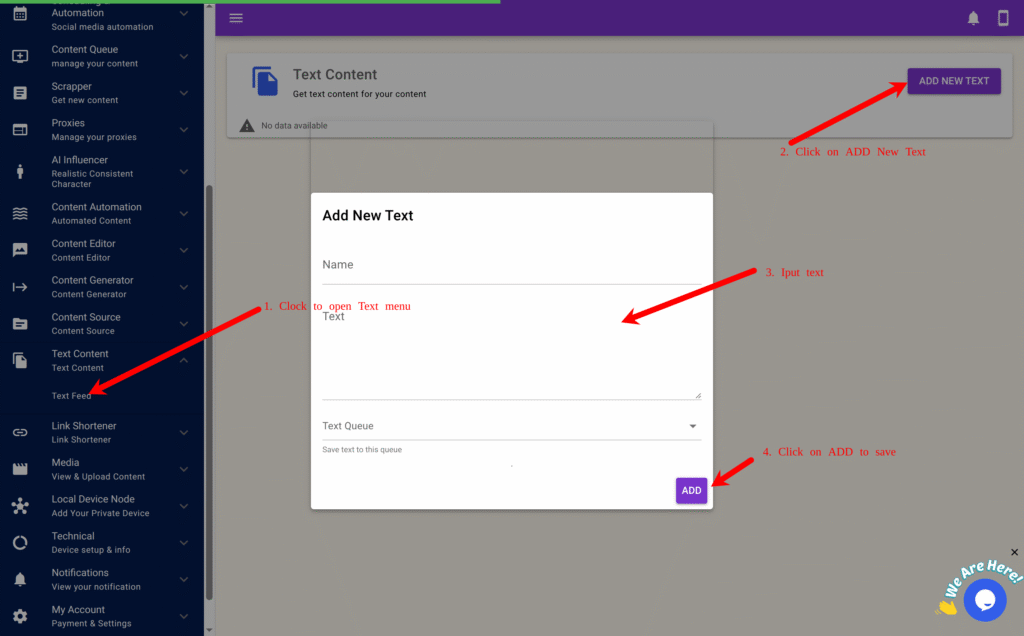
- Go to Text Content → Text Feed.
- Click Add NEW Text.
- Enter the text you want your influencer to say.
- In the Audio Queue field, select My Audio Speech.
- Click Save.
This text will be converted into speech automatically during generation.
Option 3: Use the Scraper Add-on
If you have the SocialAppFarm Scraper Add-on, you can:
- Scrape viral speeches or quotes from TikTok, Instagram, or YouTube.
- Automatically rewrite them before saving into your Audio Speech Queue.
Step 3: Create the Faceless Content Automation
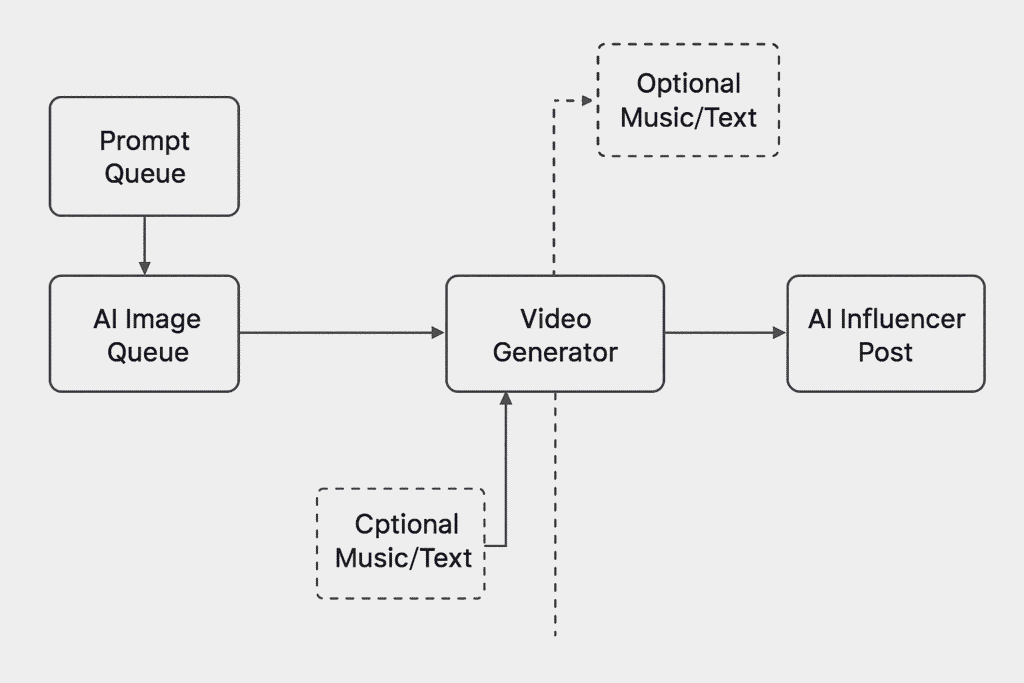
Now we’ll create the automation that combines your influencer’s images, speech, and optional background music into talking videos.
- Go to Content Generator → Faceless Content.
- Click New to create a new automation form.
- Fill in the fields as follows:
| Field | Description |
|---|---|
| Run Times | Number of times per day to generate new talking videos (e.g., 2–4). |
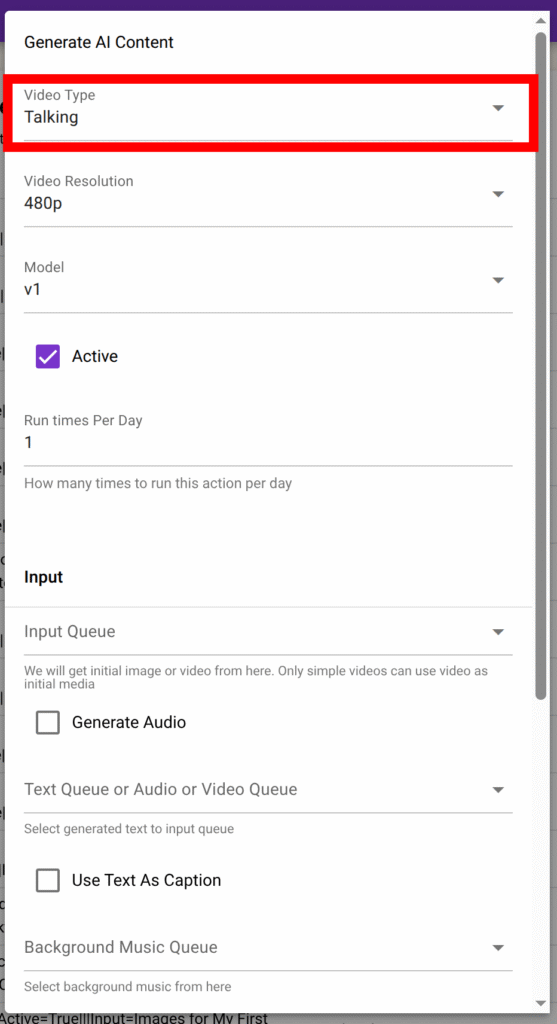
| Video Type | Select Talking. |
| Resolution | Choose 480p or 720p (720p is higher quality but more expensive). |
| Model | Select v1 or v2 (v2 gives more realistic lip-sync and lighting). |
| Input Queue | Choose the queue where your AI Influencer images are stored. These images will be used to create the talking videos. |
| Generate Audio | ✅ Tick this if using text input instead of pre-recorded audio. |
| Voice | Choose your preferred voice for text-to-speech output if using text input instead of pre-recorded audio. |
| Text Queue / Audio Queue | Select your My Audio Speech queue where your audios or text are saved. |
| Background Music Queue | Select Background Music (optional). |
| Generate Subtitles | ✅ Tick this to display captions that match the spoken audio. |
| Display subtitle one word at a time | ✅ Tick this to display captions One word at a time |
| Text Style | Select your previously created text style (e.g., My First Text Style). |
| Output Queue | Select My Talking Video Queue. |
Step 4: Save and Start Generating
Once all fields are filled:
- Click Save.
- SocialAppFarm will now automatically:
- Take influencer images from the input queue
- Use text or audio from the audio queue
- Generate realistic lip-syncing and talking animations
- Apply background music and subtitles (if enabled)
- Save the finished videos into the output queue
Step 5: Auto-Post to Social Media
To automatically post your generated talking videos:
- Go to your TikTok or Instagram campaign.
- Set the Content Queue to your My Talking Video Queue.
- SocialAppFarm will automatically post these talking videos based on your active schedule
- Just keep uploading your speech or text to the audio queue. Socialappfarm will create new talking video for you and auto-post to your account
✅ Final Workflow Summary
| Step | Task | Purpose |
|---|---|---|
| 1 | Create queues | Organize images, audio, and output videos |
| 2 | Add text or audio | Provide speech for your influencer |
| 3 | Configure Faceless Content | Combine voice, image, and effects |
| 4 | Save & generate | Automate realistic talking videos |
| 5 | Auto-post | Instantly publish to TikTok & Instagram |
✨ Result
Your AI influencer now talks naturally, delivering dynamic videos created from either text or audio — fully automated.
You can continuously feed new text or speech into the Audio Queue, and SocialAppFarm will keep generating new talking videos daily.
Leave a Reply