What if I told you the people in those images and videos aren’t real?
They’re AI Influencers — created entirely using SocialAppFarm.
And here’s the best part: you can create your own AI influencers too, then plug them directly into your automation campaigns on SocialAppFarm to generate a constant flow of endless, high-quality content for your social media accounts.
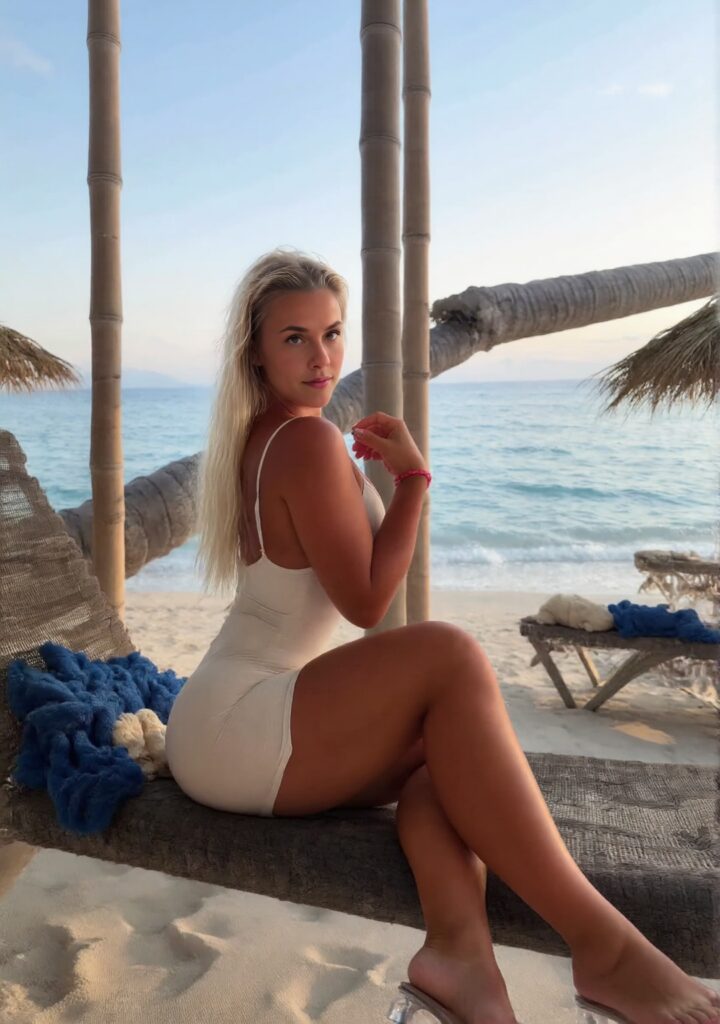
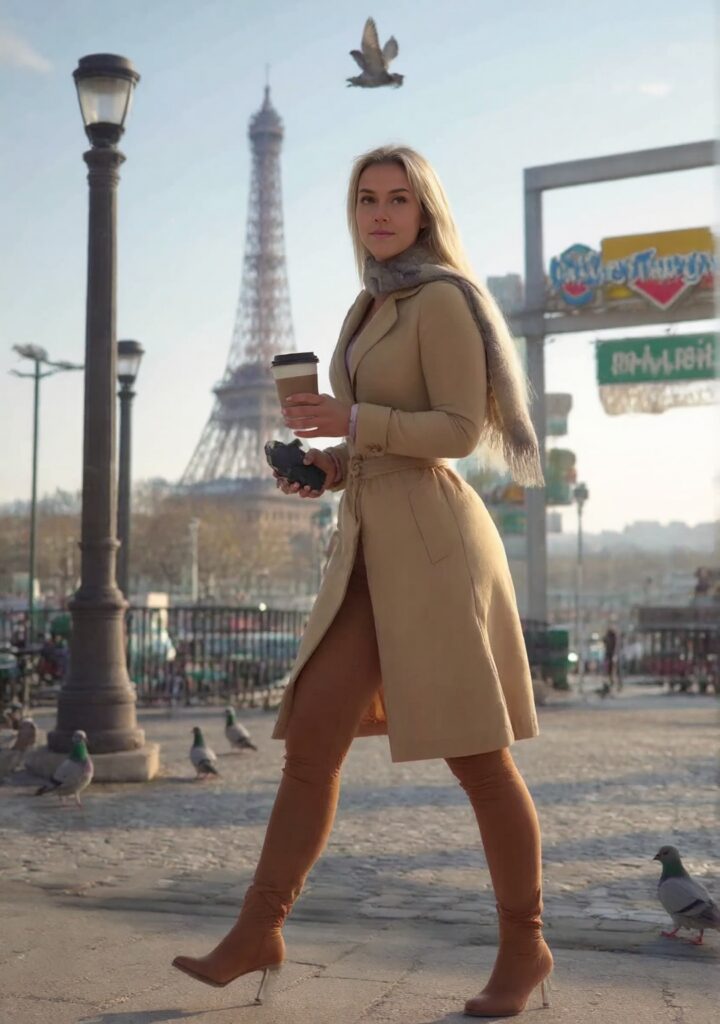
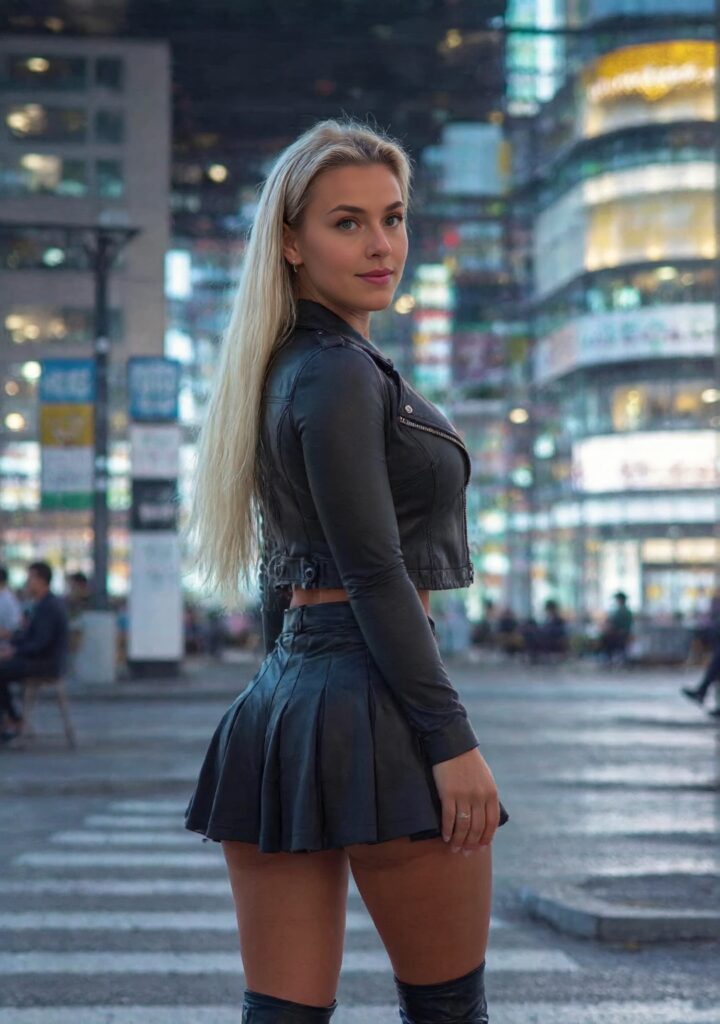
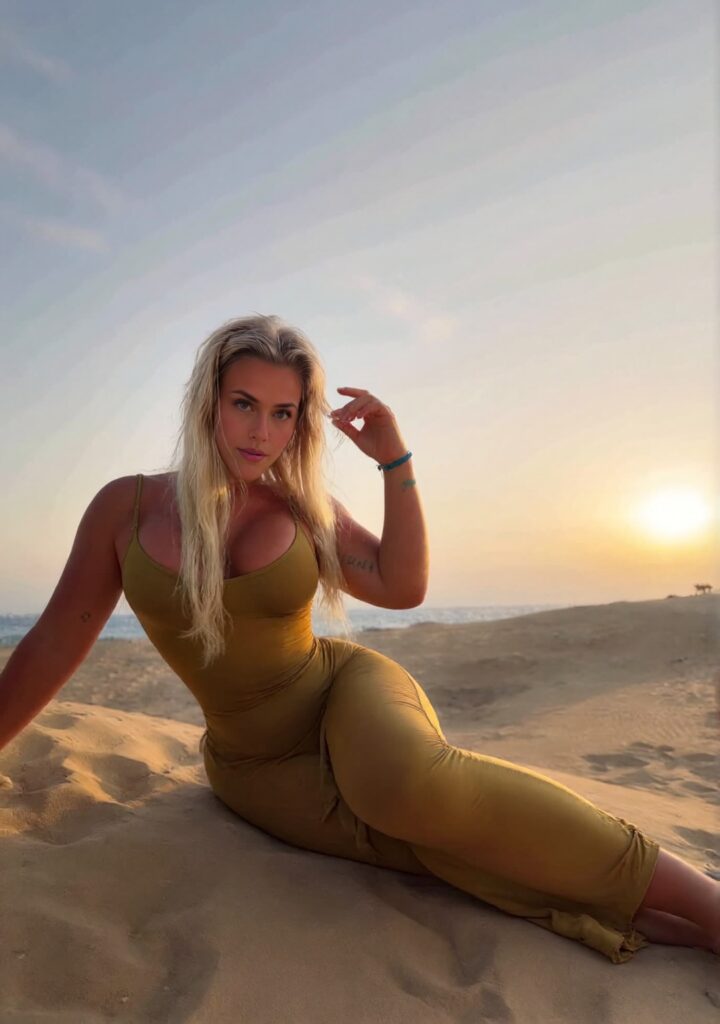


Creating your AI influencer using SocialAppFarm is simple — you don’t need expensive GPUs, technical setups, or any AI expertise.
With SocialAppFarm, you can create your influencer in just a few clicks and automatically generate high-quality content that connects directly into your social media campaigns and content automation pipelines.
This guide walks you step-by-step through how to create your first AI influencer.
📸 Step 1: Gather Your Training Images
The first step is to collect clear, well-lit photos of the influencer or model you want to train.
Image Requirements
- Quantity: 15–20 images (the more variety, the better the results).
- Quality: Use sharp, high-quality images with good lighting. Avoid blurry or low-resolution photos.
- Format: JPEG or PNG.
- Resolution: Aim for 512×512 or higher.
- Variety: Include photos of the same person in different poses, clothing, and backgrounds. Variety helps the AI generalize and produce more realistic results.
✅ Tip: Avoid filters or heavy edits — natural photos give more accurate AI likeness.
🧰 Step 2: Create a Content Queue for Training Images
Once your images are ready:
- Go to Content Queue → Content Queue on the main menu.
- Click Add New and enter a name — for example:
My First Influencer
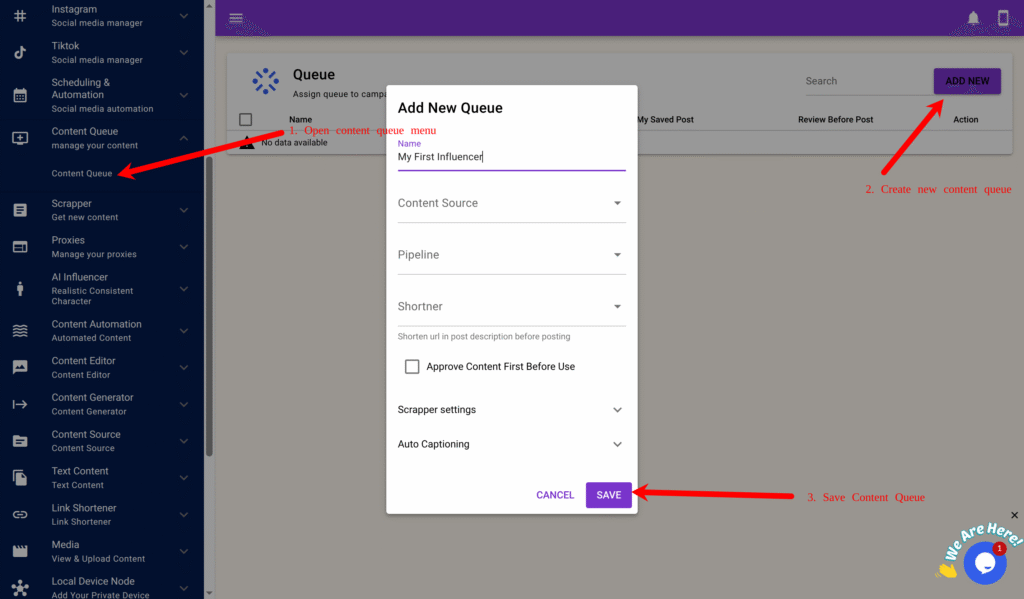
- Click Save.
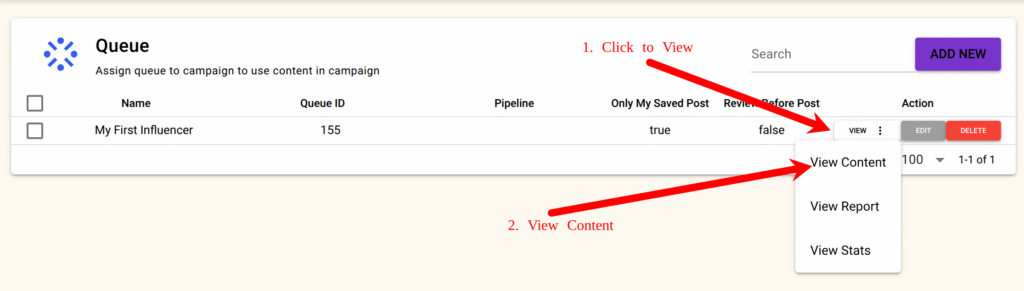
- Next, click View → View Content on your newly created content queue.
- Click the + Upload icon and upload all your prepared images.
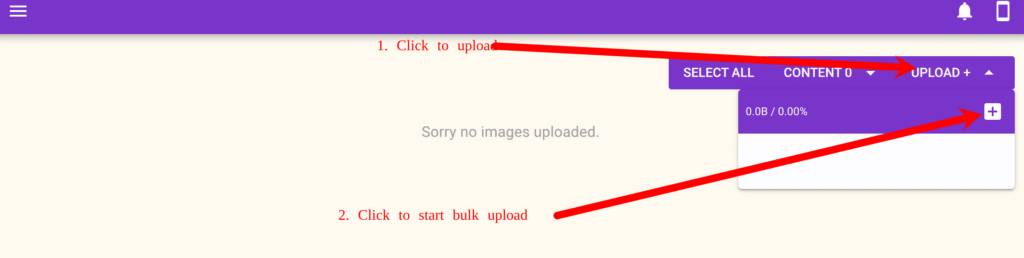
If any uploads fail, simply re-upload those specific images.
This queue will serve as your training image source for the AI model.
🤖 Step 3: Create a New AI Influencer
Now that your training images are uploaded:
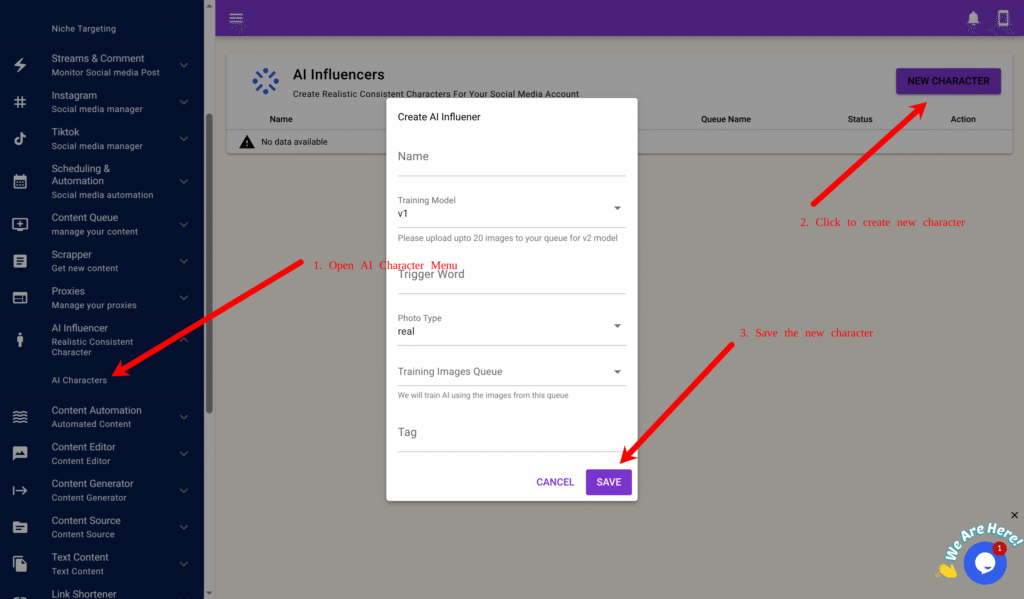
- From the main menu, go to AI Influencer → AI Characters.
- Click the New Character button.
- Fill in the fields as follows: FieldDescription
- Name: The display name of your AI Influencer (e.g., Jane).
- Model: Choose v1 or v2.
🔹 v1 = cheaper and faster
🔹 v2 = more realistic and higher quality. - Trigger Word: A unique keyword used when generating images (e.g.,
j1ne1). This acts as your influencer’s “identity.” - Photo Type: Normal Select the base image style (portrait, lifestyle, studio, etc.). You can change this later.
- Training Images Queue: Select the queue where you uploaded your training photos (e.g., My First Influencer).
- Tag(Optional): A label to help organize or assign your influencer in campaigns later.
- Once filled, click Save to create your influencer.
⚡ Step 4: Train Your AI Influencer
After saving, click the Train button to start training your influencer.
SocialAppFarm will automatically begin AI model training using your uploaded images.
The process usually takes about 20 – 30 minutes, depending on the model type and server load.
You can monitor progress from the Status field next to your influencer name.

🖼️ Step 5: Generate Test Images
Once training is complete, you’ll see a Generate button next to your influencer.

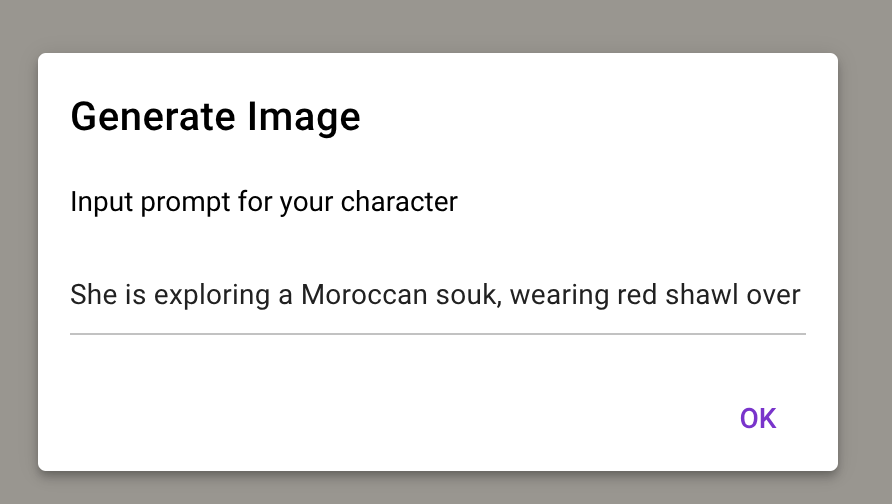
- Click Generate to open the prompt dialog box.
- Enter a short descriptive prompt — for example:
She is exploring a Moroccan souk, wearing red shawl over cream blouse, patterned skirt, carrying woven bag, colorful carpets and spices around, soft dust haze in air, afternoon light filtering through, warm tones
- Click Generate Image.
Within seconds, SocialAppFarm will create and display your AI-generated image in a pop-up window.

✅ Tip: Try creative prompts to explore different angles, lighting, or scenarios:
- “Wearing business casual in a modern office.”
- “Sunset portrait by the beach.”
- “Studio photo with soft lighting and neutral background.”
📈 Step 6: Integrate into Campaigns
Once your influencer is trained and tested, you can:
- Use our content Automation To Keep Generating Fresh And cool images For your AI Influncer
- Plug the AI influencer into SocialAppFarm campaigns & Account for automated posting.
- Use it with Content Generator or Content Editor for captions and media blending.
- Assign it to different projects or devices to automate multi-platform influencer activity.
✅ Summary
You’ve just created your first realistic AI influencer — without writing a single line of code or owning a GPU.
With SocialAppFarm, you can:
- Build custom influencers with unique trigger words
- Generate endless photorealistic images
- Automate their social media activity
- Integrate AI influencers directly into your content pipelines
Continue experimenting with prompts, photo types, and models (v1 vs v2) to find the perfect look and personality for your AI influencer.
Leave a Reply